Google Assistant
- 3.9
- Rating
- 5.00B
- Installs
- Free
- Price

 Analysis by App-foxy
I have always found voice assistants most useful when I treat them as a quick layer between me and the small tasks that interrupt the day. Google Assistant fits that role well on Android, especially when I need an answer, a reminder, a timer, or a hands-free way to control something without opening several apps. It is a free productivity app from Google LLC, rated for Everyone, and its enormous reach is understandable: the service is available on devices running Android 6.0 or later and has passed five billion installs.
That reach does not mean it is perfect. In my experience, Google Assistant is strongest when the request is short and familiar, while more complicated conversations can become awkward. It can save time, but only if I phrase requests clearly and accept that voice recognition, account settings, device context, and app support all affect the result. I would recommend it to people who want a practical voice shortcut, not to someone expecting a completely independent digital secretary.
How Google Assistant feels in everyday use today
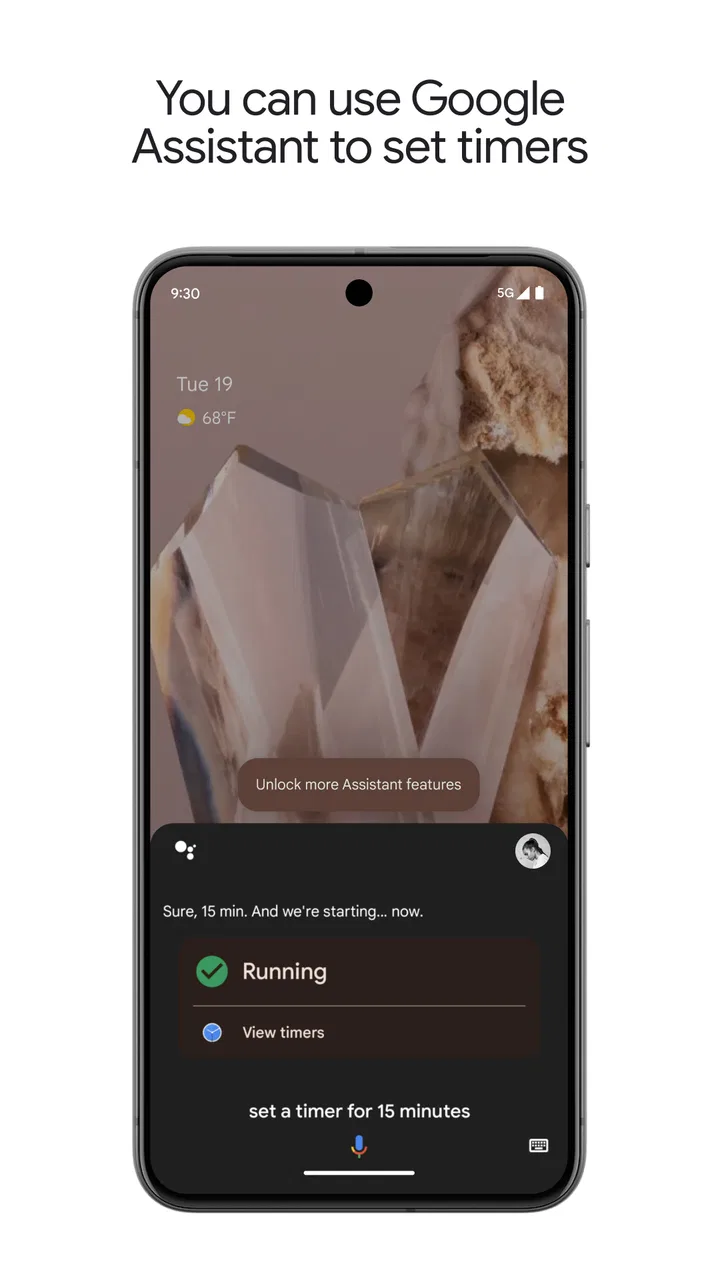
The first thing I notice is how quickly the app moves me from intention to action. Asking for a timer while cooking is easier than touching a greasy screen. Requesting a reminder while walking means I do not have to stop and type. Checking a definition, converting a measurement, or asking about the weather can also be faster by voice than by searching manually.
In-Depth Coverage of Google Assistant
Those simple jobs are where the app earns its place. I do not need to remember which application handles each request. I can speak naturally enough, wait for the response, and continue with what I was doing. The store summary describes the goal as getting things done faster and more easily, and that is a fair description of the best experience, even though the result depends heavily on the task.
Google Assistant can also be useful when my hands are occupied or when looking at a screen would be inconvenient. A quick spoken request can help while preparing food, carrying bags, or getting ready to leave. The value is not that every command is magical; it is that small interruptions become less disruptive.
I would not use it as my only productivity system, though. Voice is excellent for capturing an idea, starting a timer, or asking a direct question. It is less comfortable for reviewing a long list, editing several details, or organizing a project with many dependencies. For that kind of work, I still prefer a keyboard, a calendar view, or a dedicated task manager.
Where the hands-free approach is genuinely practical
A realistic example is a busy weekday morning. I might ask for a reminder to take something with me when I leave, set a timer while making breakfast, and ask for directions before heading out. Each request is small, but avoiding repeated taps makes the routine feel smoother. The important point is that Assistant works best as a collection of tiny shortcuts rather than as one large all-purpose workflow.
Another useful habit is using it to capture thoughts before they disappear. If I suddenly remember an errand or an idea while away from my desk, speaking it is faster than opening a notes app and formatting it. I still need to review the resulting reminder or note later, but the assistant reduces the friction at the moment of capture.
There is also a useful distinction between asking for information and asking for an action. Information requests are usually forgiving: if the answer is not exactly what I wanted, I can rephrase. Actions need more care. A reminder with the wrong time or a message sent to the wrong contact can create trouble, so I check important results instead of assuming every spoken command was understood perfectly.
What the current version tells me about its direction
The current version is listed as 0.1.884448652, while the app itself has been available since October 4, 2017. I see that combination as a sign of a product that has been maintained through ongoing iteration rather than presented as a finished, static tool. Google Assistant has had time to become familiar to a very large Android audience, but its long history also means the experience can feel uneven across phones, accounts, and connected services.
That version detail is useful for a practical reason: users should keep expectations tied to the build installed on their device, not to demonstrations they may have seen elsewhere. Voice assistants change gradually, and a feature that appears in one environment may not behave identically in another. I would check the app through the normal Android update process and test the commands I actually depend on instead of assuming every capability is universal.
The app’s average rating is 3.8 from roughly 1.3 million ratings, with about 48 thousand written reviews. I read that as a balanced signal. Many people clearly find the assistant useful, but a rating at that level also suggests recurring frustration around recognition, reliability, or expectations. The rating does not erase its strengths; it simply reinforces my view that this is a helpful tool with noticeable edges.
How existing users are affected by its evolution
For someone who has used Google Assistant for years, the main advantage is familiarity. Once I learn the wording that works for my routines, I can repeat it without rebuilding a separate system. Familiarity matters with voice tools because confidence comes from knowing which requests are dependable and which ones deserve a quick visual check.
You May Also Like

 AliExpress - Shopping App
AliExpress Makes Global Shopping Feel Personal, but Shoppers Bear the Risk
AliExpress turns a global marketplace into a pocket-sized discovery engine. Its reach is useful, its shopping loop compelling, and its trade-offs easy to miss.

 Lords Mobile: Kingdom Wars
Lords Mobile Is a Kingdom-Building Routine, Not a Quick Match
A case-by-case verdict on the building, battles, device demands, and social commitments that make Lords Mobile rewarding for some players and exhausting for others.

 PDF Scanner app - TapScanner
TapScanner Makes Paperwork Easier to Capture, Check, and Share
TapScanner makes scanning with a phone feel less like a rescue operation and more like a dependable step in getting work done. Its capture tools are useful, though not flawless.

 Block Blast!
Block Blast! Shows How Much a Puzzle Game Can Leave Out
A quiet grid game shows why puzzle players increasingly value instant clarity, repeatable skill and low-pressure play—and where the genre still needs to catch up.

 Family Space
Family Space Review: A Shared Routine That Makes Family Life Easier
A parenting app earns its place not by adding more noise, but by making everyday coordination easier. Family Space gets that balance mostly right.

 1Weather Forecasts & Radar
1Weather Forecasts & Radar Makes the Daily Check Worthwhile
A good forecast does more than predict rain. This week's pick turns changing conditions into a clear, practical reason to check before you step outside.
More From Our News Desk
View All News


The trade-off is that established habits can hide changes in behavior. A command that once opened a particular result may later respond differently because the surrounding Android experience, account configuration, or connected app has changed. When something feels inconsistent, I first simplify the request, confirm that I am using the intended account, and try the same action manually. That process usually tells me whether the problem is recognition, context, or the action itself.
I also recommend reviewing personal routines periodically. A voice shortcut is valuable only while it matches the way I actually live. If a reminder workflow has become noisy or a command is no longer worth saying aloud, removing it is better than allowing old habits to create clutter. Assistant is most effective when I keep the number of dependable actions small and clear.
Existing users should also think about privacy and attention in practical terms. Speaking aloud is not always appropriate in a shared office, public transport, or a room with other people. In those situations, the assistant’s convenience may be outweighed by the need for discretion. I switch to touch input when the request contains personal information or when I need to verify several details before acting.
Small techniques that make it more dependable
My first tip is to separate capture from organization. I use voice to create a quick reminder or record an immediate thought, then later use the relevant app to add context, a deadline, or a clearer description. Trying to dictate a perfectly structured plan in one breath is slower and more error-prone than capturing the essential idea first.
Second, I use specific nouns and times. “Remind me about the appointment” is less useful than naming the appointment and saying when I need the reminder. Clear wording reduces the number of follow-up corrections and makes the result easier to recognize later. This is especially important when several people, places, or tasks have similar names.
Third, I treat confirmation as part of the workflow for consequential actions. If Assistant is setting a timer, the cost of a mistake is low. If it is sending a message, changing a calendar item, or recording something important, I look at the result before moving on. That extra second is a sensible trade-off for avoiding an embarrassing or costly error.
A fourth technique is to use the keyboard when voice becomes inefficient. Google Assistant is not a contest where every task must be spoken. Typing can be better in a noisy environment, when a name is unusual, or when the request contains several conditions. The strongest experience comes from switching between voice and touch rather than forcing one input method to handle everything.
Where it falls short compared with familiar alternatives
Compared with a standard search box, Assistant is faster for a short spoken question but less comfortable when I want to scan several sources or refine a query visually. Search gives me more control over wording and results. Assistant is the better choice when I want a quick answer or action and do not need to inspect a broad set of options.
Compared with a dedicated task manager, it is easier for rapid capture but not as strong for project planning. A task manager usually gives me clearer views for priorities, subtasks, tags, and progress. I would use Assistant to create the initial reminder, then move into a dedicated tool if the task grows into a multi-step project.
Compared with manually opening smart-home or media controls, voice can be more convenient when I am already away from the phone. However, touch controls are better when I need to see the current state, choose among several similar devices, or make a precise adjustment. Voice reduces taps; it does not remove the need for visual context.
Compared with typing into a messaging app, Assistant can save time for a short, straightforward message. It is not my preferred method for sensitive, nuanced, or lengthy communication. I want to review tone, names, punctuation, and recipients before sending anything important, and a keyboard gives me more confidence there.
Who should use it, and who should skip it
I think Google Assistant is a good match for Android users who regularly need timers, reminders, quick information, navigation help, or hands-free actions. It is particularly useful for people who already rely on Google services and want one familiar voice interface instead of jumping between separate tools.
It can also help users who find typing inconvenient or who benefit from speaking requests while moving around. The age rating of Everyone makes it broadly approachable, although the quality of the experience still depends on how comfortable each person is with voice interaction and on the setup of the device.
I would skip it if I dislike speaking to my phone, work mostly in quiet-sensitive environments, or need a detailed visual productivity workspace. I would also hesitate to make it central to a workflow that demands perfect transcription or precise automation. In those cases, a keyboard-driven app, a dedicated planner, or direct manual controls may be more reliable.
Another reason to skip it is expectation mismatch. If someone wants long, open-ended conversations, deep project management, or guaranteed execution across every installed service, this app may feel limited. Its practical strength is quick assistance, not replacing every productivity application on the phone.
What I would watch before relying on it more heavily
I would pay attention to how future updates affect consistency between voice requests and the actions that follow. The most meaningful improvement for me would not simply be more capabilities; it would be clearer, more predictable handling of the capabilities already used every day. A fast assistant that occasionally misunderstands an important command can create more work than it saves.
I would also watch how well the experience remains understandable when a request cannot be completed. A useful response should make it obvious whether Assistant heard the wrong words, lacks access to an app, needs more information, or cannot perform the action. Clear feedback helps me correct the problem instead of repeating the same sentence.
For people already using the app, I suggest watching their own results rather than chasing every new possibility. Track which commands genuinely save time over a normal week. If a feature requires repeated corrections, it may not belong in your routine, even if it sounds impressive. The best personal setup is usually a short list of dependable actions.
Google Assistant remains a sensible free productivity companion, and its five-billion-plus installs show how deeply it has reached the Android ecosystem. Still, popularity is not a substitute for fit. I see it as a convenient voice layer: excellent for quick requests, useful for hands-free moments, and less suitable for detailed planning or high-stakes automation.
My final recommendation is straightforward: install it if you want to reduce the friction of small daily tasks and are willing to verify important results. Start with one timer, one reminder habit, and one information request you make often. If those save you time, expand gradually. If you find yourself repeating commands, correcting details, or avoiding voice input, a more focused alternative will probably serve you better. Its real value is not doing everything; it is making the right small things easier at the moment you need them.
FAQs for Google Assistant
01What is Google Assistant and how does it work?
Google Assistant is a virtual assistant powered by artificial intelligence, designed to help users perform tasks and answer questions through voice commands. It integrates with various Google services and third-party apps, allowing you to set reminders, control smart home devices, get weather updates, and more, all hands-free.
02Is Google Assistant available on both Android and iOS devices?
Yes, Google Assistant is available on both Android and iOS platforms. On Android devices, it is often pre-installed, while iOS users can download it from the App Store. However, the integration is typically more seamless on Android, offering a broader range of features compared to iOS.
03Does Google Assistant require an internet connection to function?
Yes, Google Assistant requires an active internet connection to process voice commands and access information. It utilizes Google's servers to understand and respond to queries. While some basic functions might work offline, the full range of features needs connectivity to function effectively.
04How does Google Assistant handle user privacy and data security?
Google Assistant is designed with user privacy in mind, allowing users to manage their data and privacy settings. You can review, delete, or manage the information stored by Google through the My Activity page. Google also provides options to limit data collection and choose how your information is used.
05Can Google Assistant interact with smart home devices?
Yes, Google Assistant can control a wide range of smart home devices, including lights, thermostats, and security cameras. It supports numerous brands and platforms, allowing you to create a connected home environment. Setup typically involves linking your smart devices to the Google Home app, enabling voice commands for control.
Pros
- Voice recognition is highly accurate.
- Integrates seamlessly with smart devices.
- Supports a wide range of languages.
- Offers personalized recommendations.
- Free to use on most devices.
Cons
- Requires internet connection to function.
- Privacy concerns with data collection.
- Limited functionality in some regions.
- May not recognize all accents easily.
- Needs regular updates for new features.

Google Assistant
Gallery